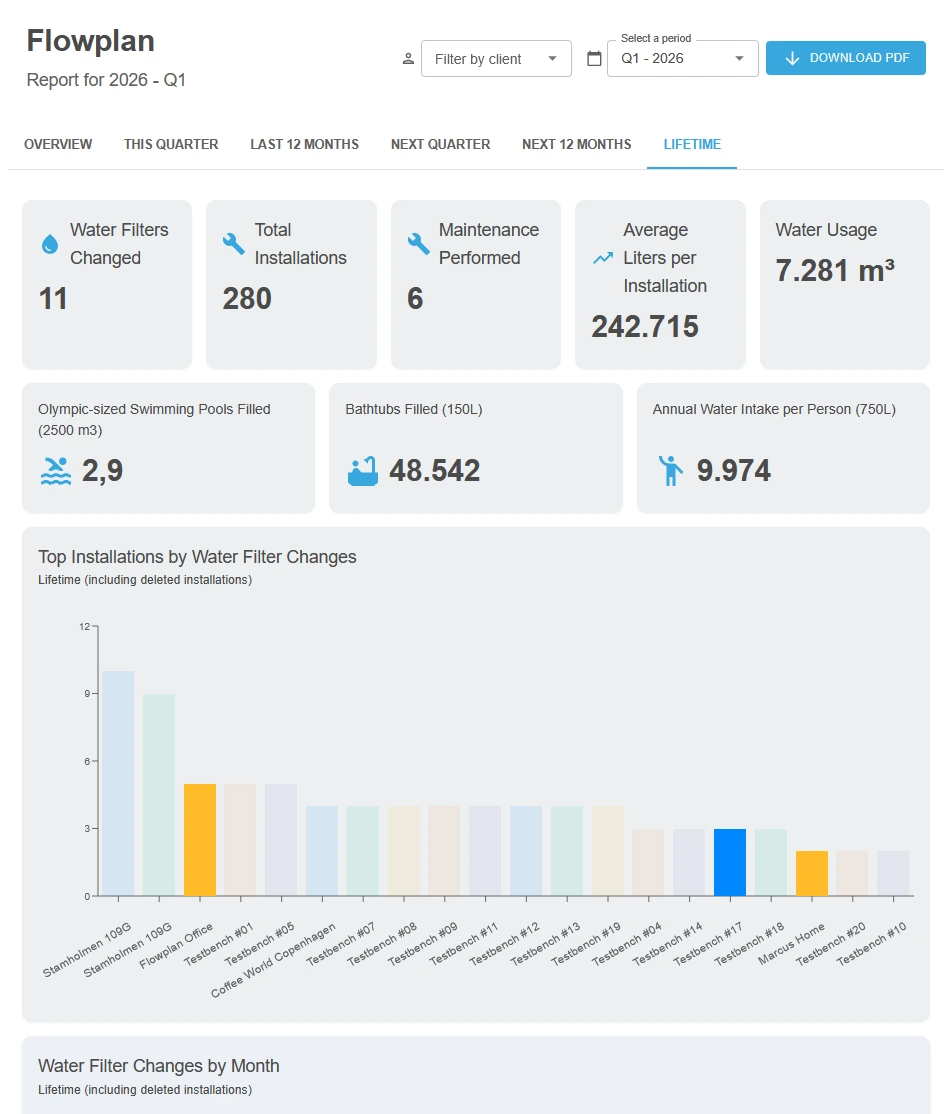
This update brings one of our biggest features yet, draft installations, together with the new OnlinePOS integration, a set of quality of life improvements and dark mode in Field Office.
Draft installations
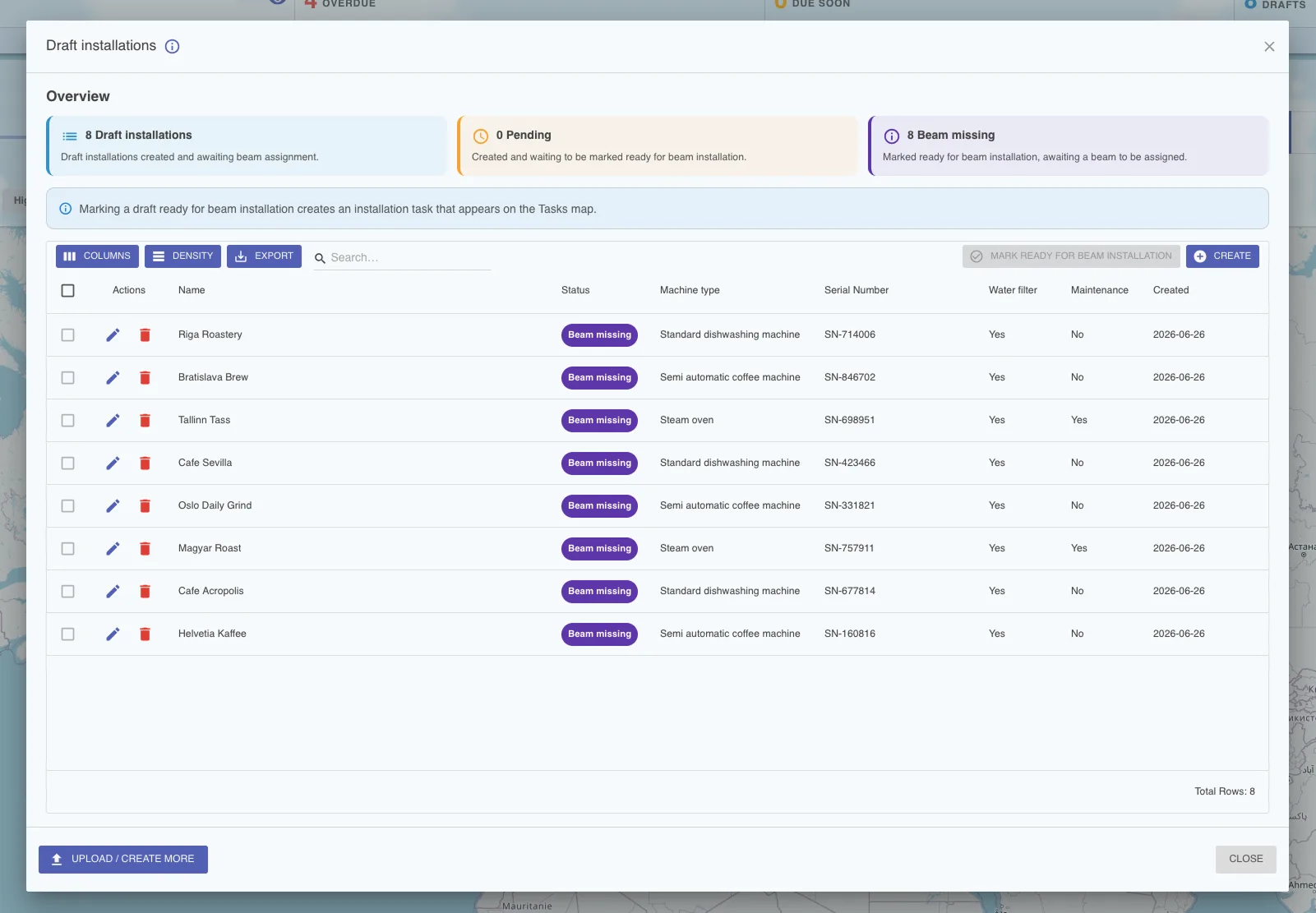
Draft installations let you prepare an installation before it exists in the field. Set up the location, product and details in advance, then assign the draft so it is ready to be completed on site. It removes the guesswork and manual setup that used to happen at the location.
How it works
Create drafts one by one, or download the template CSV, fill it with your data and upload it: Flowplan converts it automatically and recognizes every installation. Keep track of which drafts are still unassigned and which have been sent out, and let the field complete them with everything already in place.
Where to find it
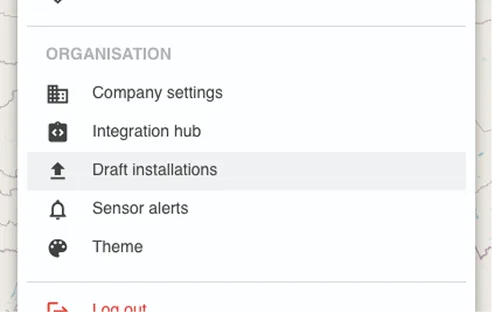
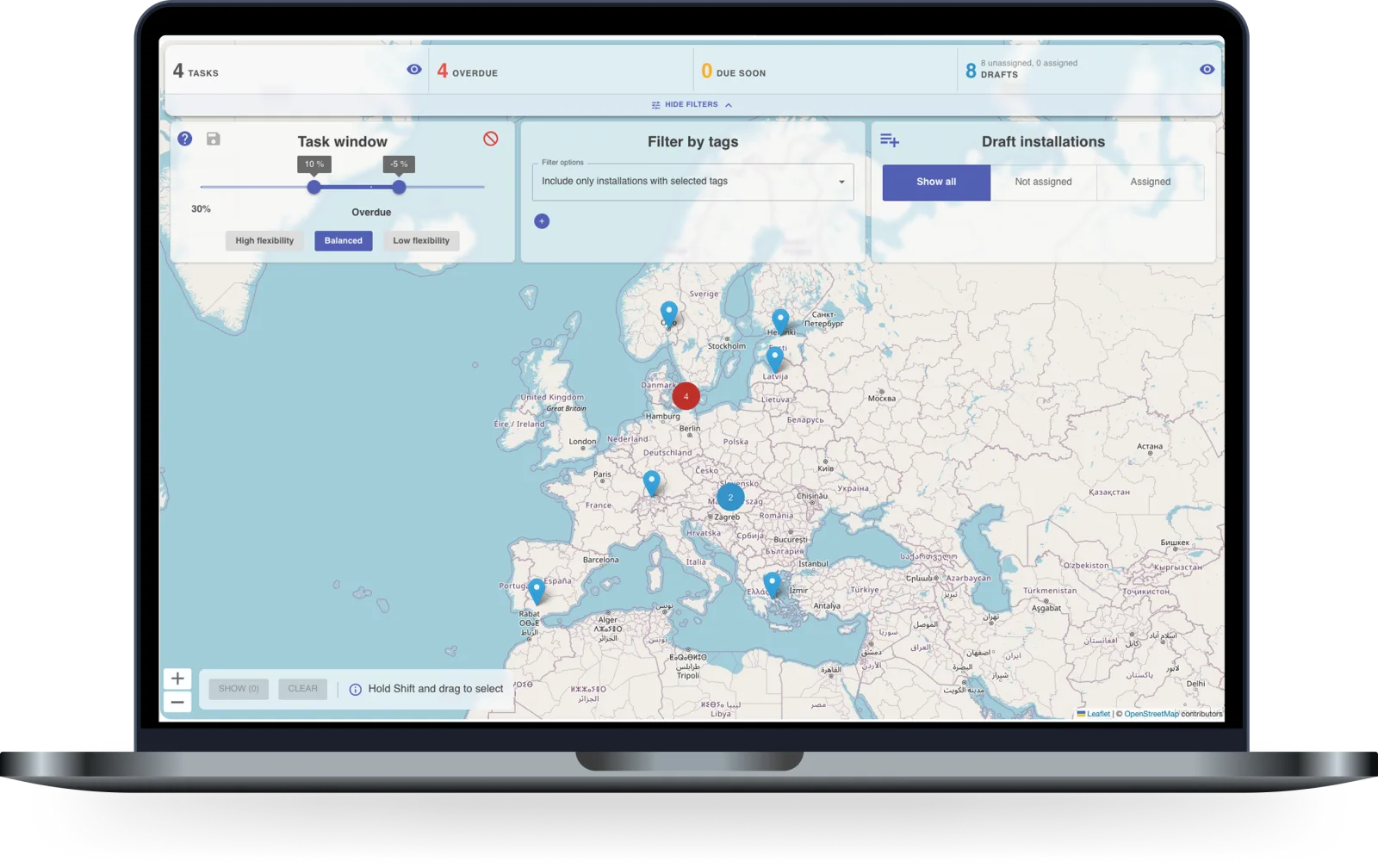
You'll find draft installations in the menu in the top right, under the Organisation section. Once created, they show up as blue markers on the map.
Also on the task map in Field Office
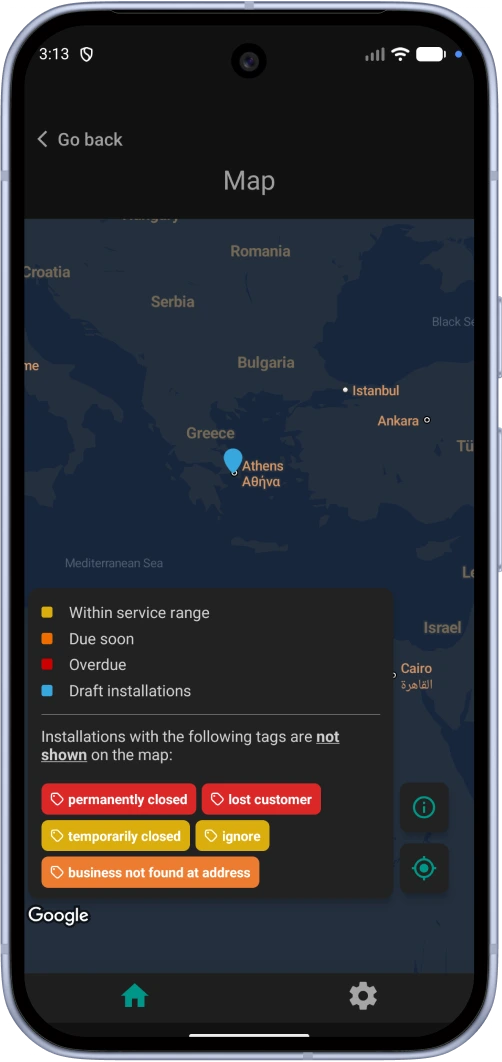
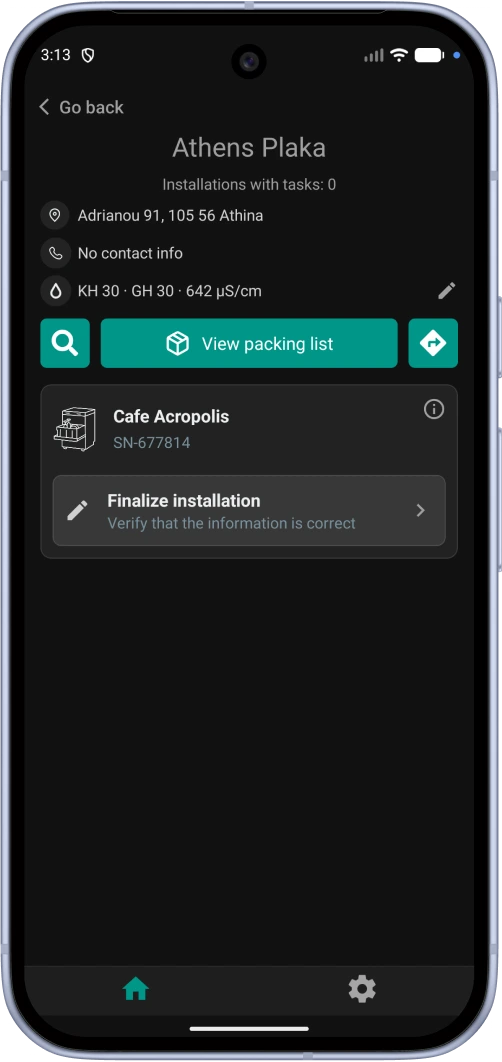
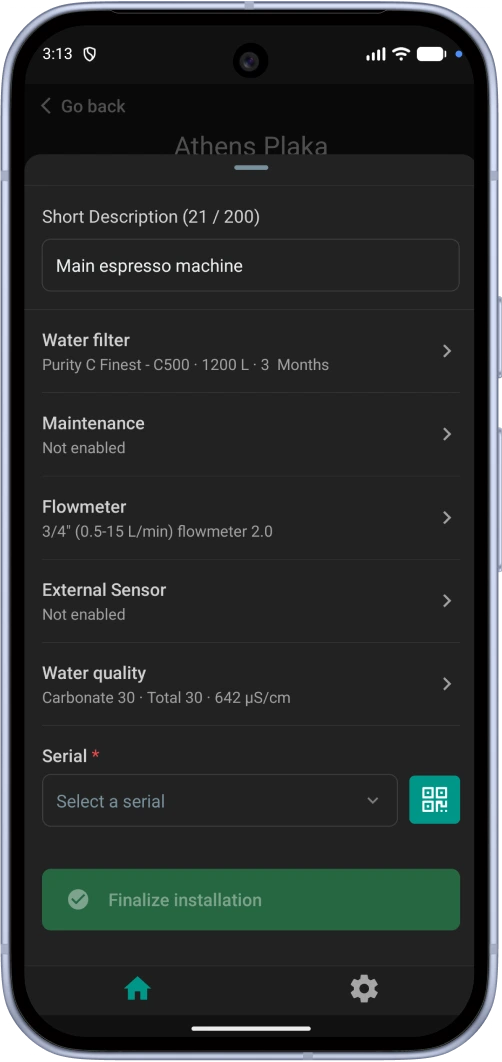
Drafts don't stay behind the desk. They show up in Field Office as blue markers on the task map, so whoever is out driving can see what is waiting. Open one and everything you prepared is already there: water filter, flowmeter and water quality. Review the details, scan the serial, and finalize the installation on the spot.
OnlinePOS: find the beer you're not paid for
Connect your sales system and Flowplan compares your sales with what the taps actually poured. Beer that leaves the keg without a sale behind it is money you never see. Now you can tell how much there is, and where it comes from.
- Loss you can measure: Sold against poured, per location and per tap, in liters and percent.
- Pours that are too generous: A glass that consistently runs big quietly adds up over a month.
- Runs on its own: Set it up once and the numbers keep coming, with no manual work.
Getting started
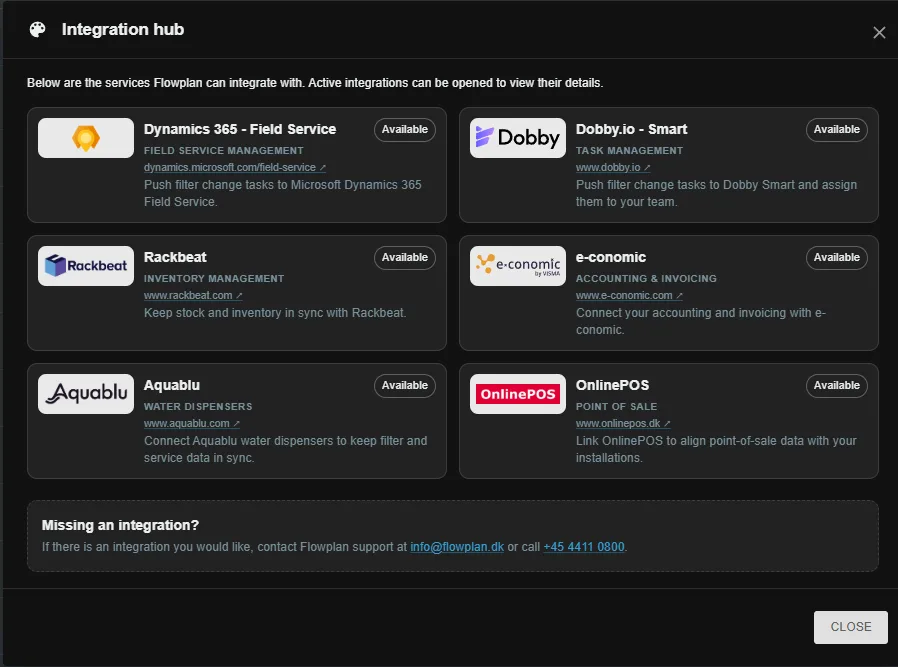
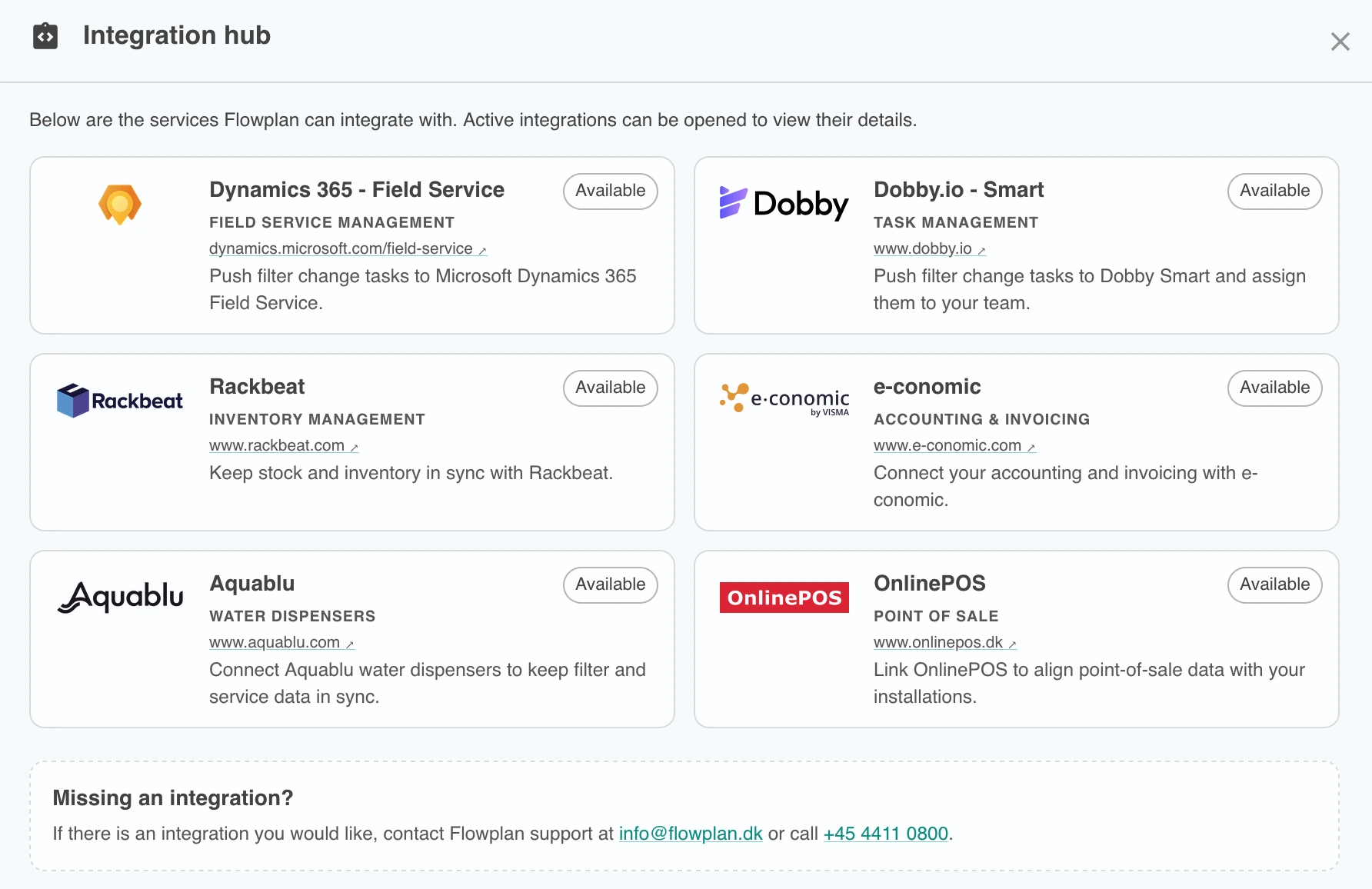
Connect OnlinePOS from the integration hub, pick a location, and confirm the products we match to your taps. The first graphs are ready a couple of hours later, in the OnlinePOS dashboard under Taps.
Quality of life improvements
We've made a number of smaller improvements based on your feedback, focused on the tasks map.
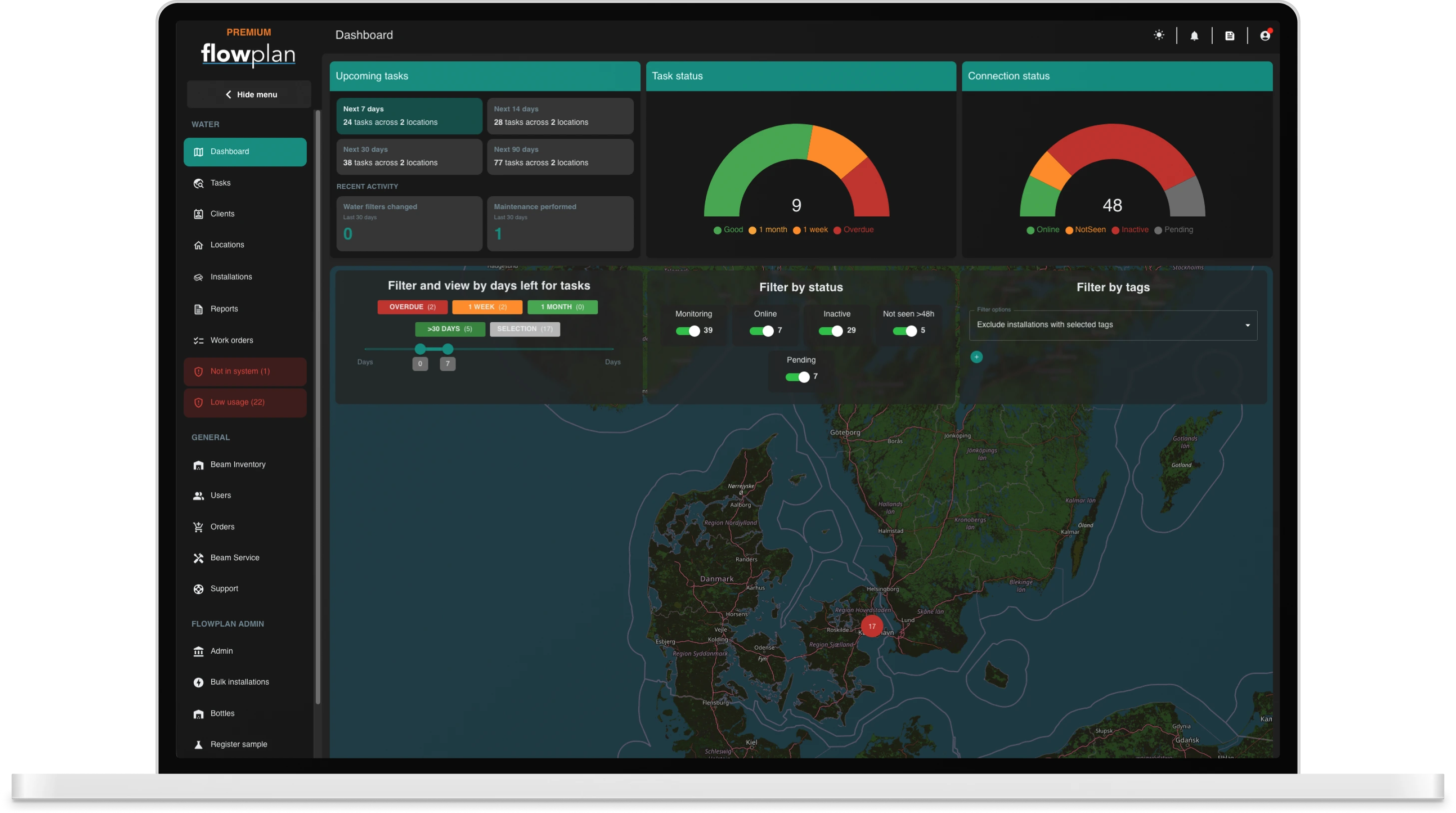
- Map statistics: The tasks map now shows statistics at a glance, so you can read the state of your tasks without leaving the map.
- Hide the filters: You can now collapse the filter panel to give the map more room when you don't need it.
Field Office
Two things happened to the mobile app this month: it got a full dark theme, and a couple of everyday jobs got easier.
Dark mode
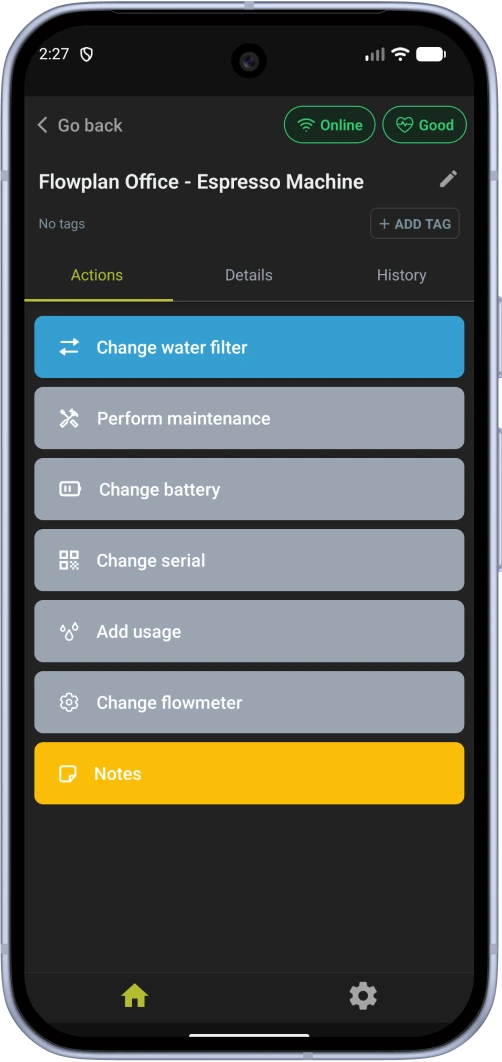
Dark mode came to Backoffice earlier this year, and it now covers Field Office too. Screens, lists, task details, dialogs and the map have all been tuned for low light, so the app stays comfortable in a dim cellar or late in the evening.
- A theme for the whole app: Not just the shell: task lists, installation details, cards and the map are all designed for dark mode.
- Your accent color follows: The accent color your company picked in Backoffice carries over to the app in both themes.
How to switch
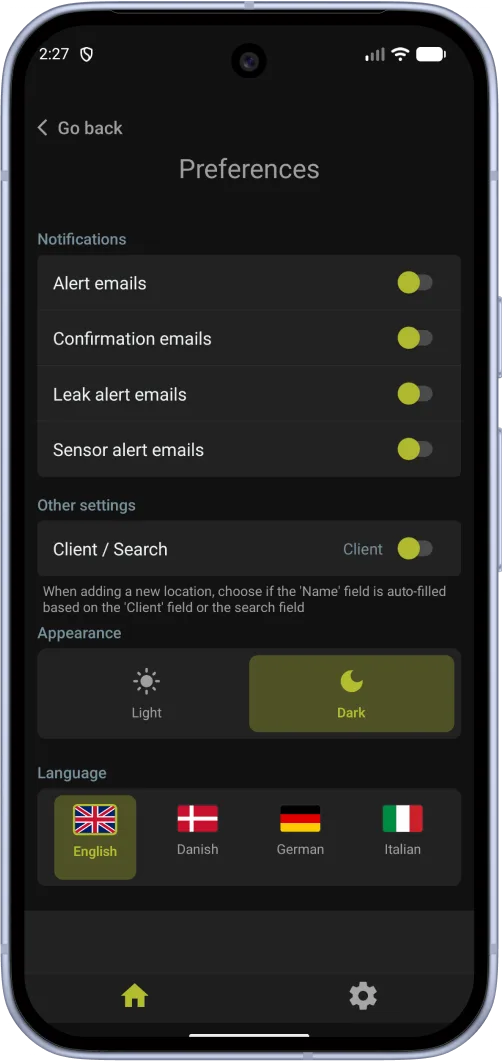
Open the settings screen and pick Light or Dark under Appearance. The app starts in light mode, and your choice is remembered on the device from then on.
Everyday improvements
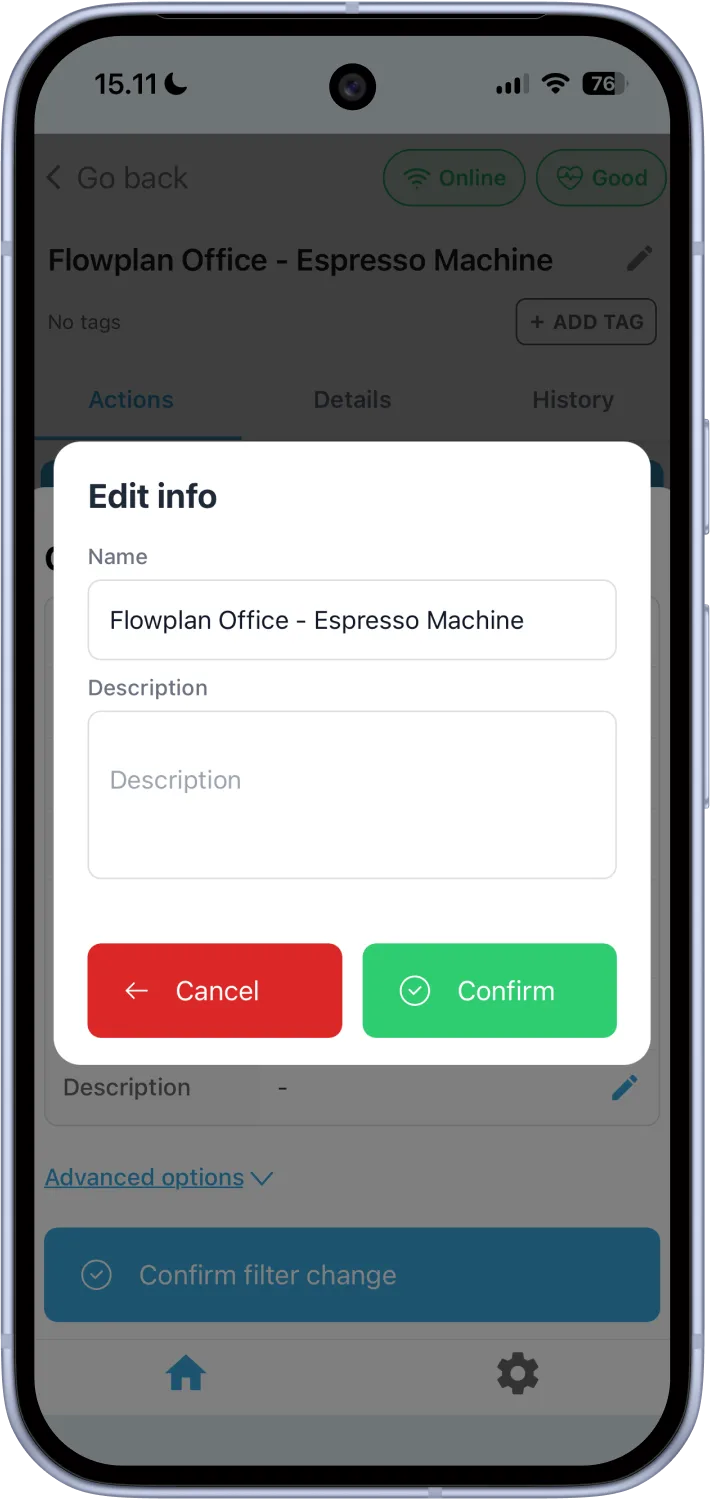
- Update description on filter changes: You can now update the location description directly while registering a filter change, keeping details current without a separate step.
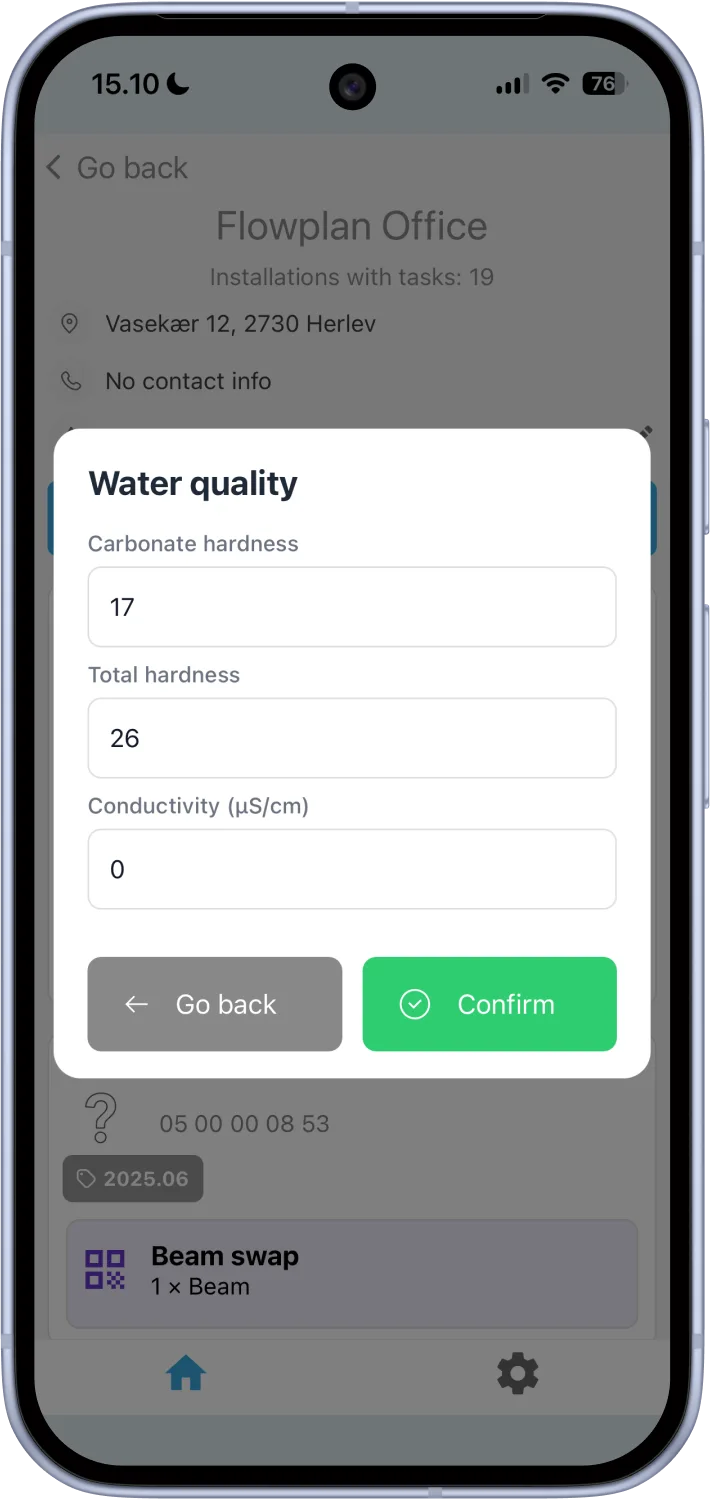
- Water hardness on site: Set the water hardness for a location right when you perform a task there, so the information is captured at the source.